
Softcode Packages
Global softcode has traditionally been distributed as a .mush file you paste into a client and
hope for the best: the dbrefs have to line up, there is no record of what was installed, and there is
no way to upgrade without clobbering local edits.
SharpMUSH still accepts .mush files: paste one in as you would on any other MUSH. It also offers
packages, which are safer and much easier to upgrade and maintain. A package is a declarative description of softcode — the
objects that should exist, and the attributes, flags, locks and parents they carry — installed
through the admin panel at /admin/packages.

How installing works
Section titled “How installing works”Packages are desired state, not a script. There is no ordering, no @create lines, and
crucially no dbrefs: object identity is symbolic and resolved to real dbrefs at install time.
That makes a plan/apply model possible:
-
Plan. The server compares the manifest against your live database and computes a changeset.
-
Review. A wizard shows you exactly what will be created, changed or removed. Nothing has been written yet.
-
Apply. Only now does anything change, and the result is recorded as a revision.
Because every apply is a revision, an install can be rolled back. And because upgrades three-way-merge against the baseline stored at install time, the local customizations you made to a package’s attributes survive an upgrade instead of being overwritten.
Dependencies are resolved against your installed packages, and version constraints are checked before anything is planned. A package can also say which SharpMUSH versions it runs on: the review screen refuses one that needs a newer server, and warns about one that has not been tested on yours. Versioning Packages covers what each warning means and how to set the range when you write a package.
Upgrading a package you changed
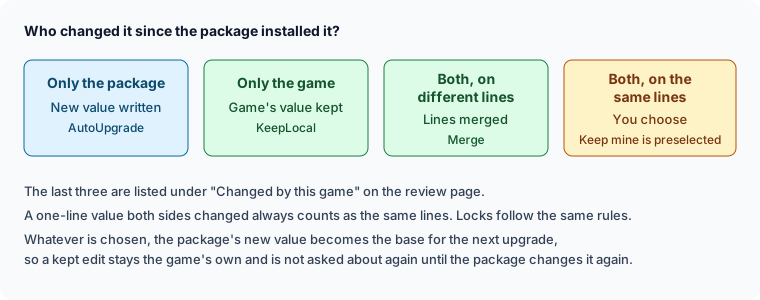
Section titled “Upgrading a package you changed”Games change the packages they install: a header in the game’s own words, a rule added to a list, a lock that lets the game’s staff role in. An upgrade keeps those changes. For every attribute and lock it compares three values: what the package installed, what the game has now, and what the new version ships.
The review page starts with Changed by this game. It lists every attribute and lock the game changed since the package installed it, and what this upgrade does with each one:
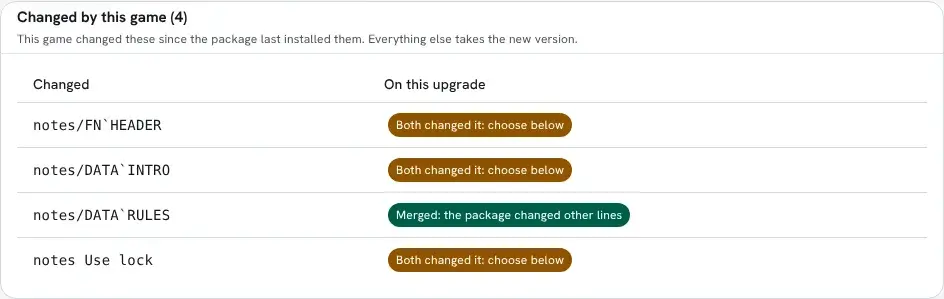
Everything not on that list takes the new version. To see only the listed attributes, turn on Only what this game changed above the attribute list.
Lines merged
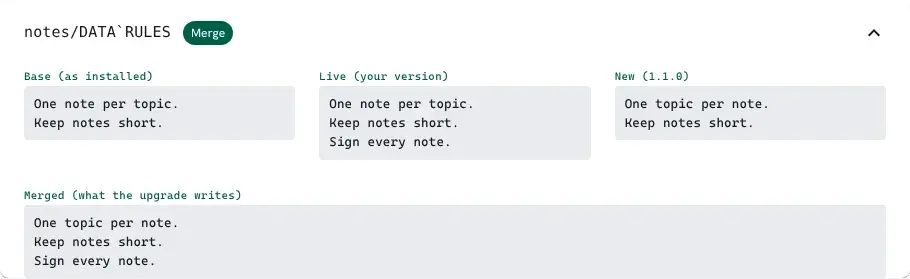
Section titled “Lines merged”When the game and the package changed different lines of a value, the upgrade writes both changes. Here the game added a third rule and the new version reworded the first, so the upgrade writes the reworded first rule followed by the game’s added one:
When both changed the same lines
Section titled “When both changed the same lines”When both changed the same lines, or both changed a value that is one line long, the review page shows the three values side by side. Keep mine is already chosen, so applying without looking never overwrites the game’s work. Take theirs writes the new version’s value. Edit merged value opens an editor, and for a value of several lines it starts from the merge with each clash marked:
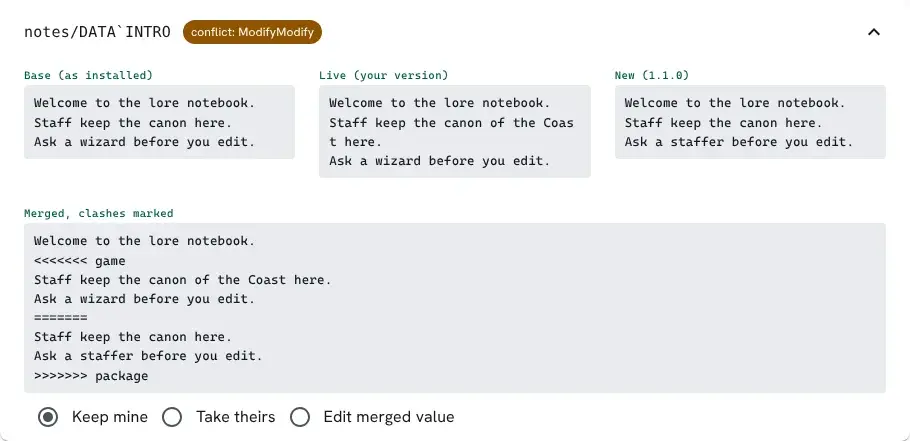
Delete the marker lines and keep what you want from each side. The editor holds the value the upgrade writes.
Locks work the same way:
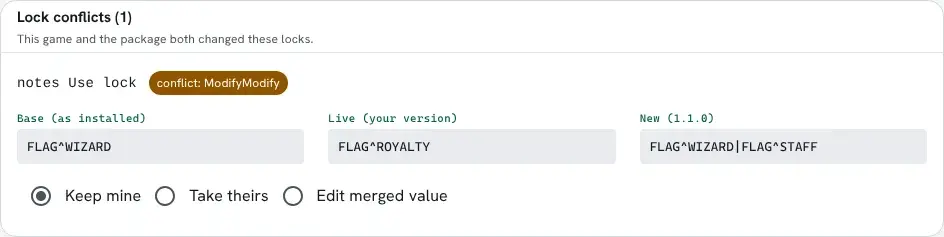
Whatever you choose, the new version’s value becomes the base for the next upgrade. An attribute you kept is listed as the game’s own and is not asked about again until a later version changes it too. Wiki pages a package ships merge the same way.
What runs after the apply
Section titled “What runs after the apply”A package can carry an AINSTALL attribute, which runs after a first install, and an AUPDATE
attribute, which runs after an upgrade. The last card on the review page, Runs after the
apply, shows that code for each object as it will read once the apply has written it. When you
change a choice above, the card shows the code that choice leaves. It also lists any hook the
game put on one of the package’s objects itself, since the apply runs that too.

Getting packages
Section titled “Getting packages”Add a repository under Admin → Packages → Remotes. The official one is:
https://github.com/SharpMUSH/SharpMUSH-PackagesThen browse, pick a package and a version, review the changeset, and apply.
Browse lists a repository’s packages by category and subcategory.
Each row says what the package ships (softcode, wiki pages, an application, a plugin), its version,
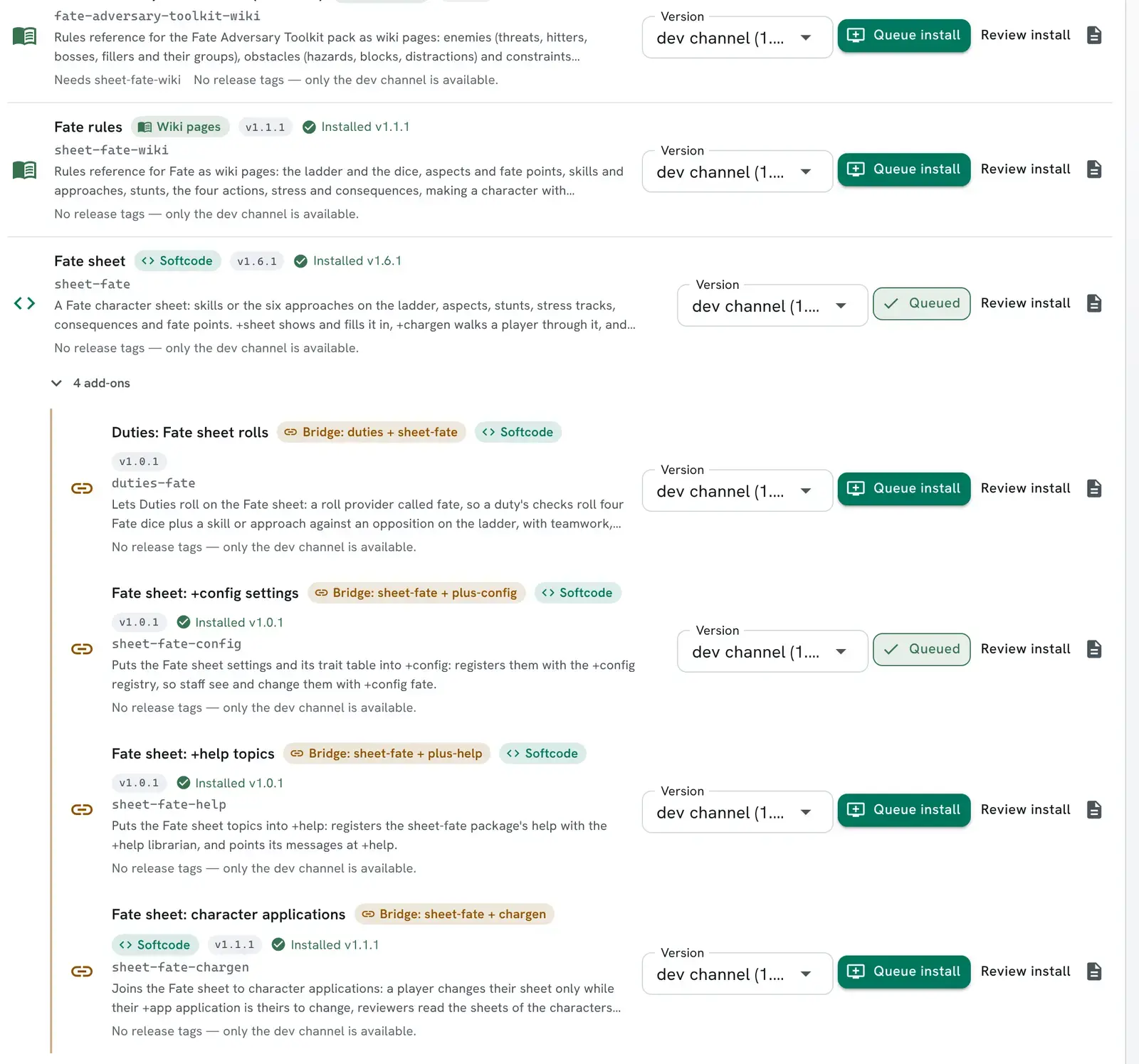
and whether it is installed. A bridge sits under the first package in its depends:
that the same repository holds, behind a line that counts that package’s add-ons, and names the two
packages it joins. Search, the
Ships filter and the category buttons narrow the list. Queue install adds a package to the
queue at the bottom of the page and turns into Queued; select it again to take the package back
out. Queueing a bridge also queues the packages it joins, and what those need, when they are neither
installed nor queued yet: from the same repository, or from the packages that ship with the server.
Review queued changes opens the queue as one batch to apply. A step with settings to choose asks for
them first; any other step can be applied as it stands, and Full review opens its changeset. If the
server refuses the batch, the result says why and nothing is changed; Review again reviews the same
changes as they stand now.
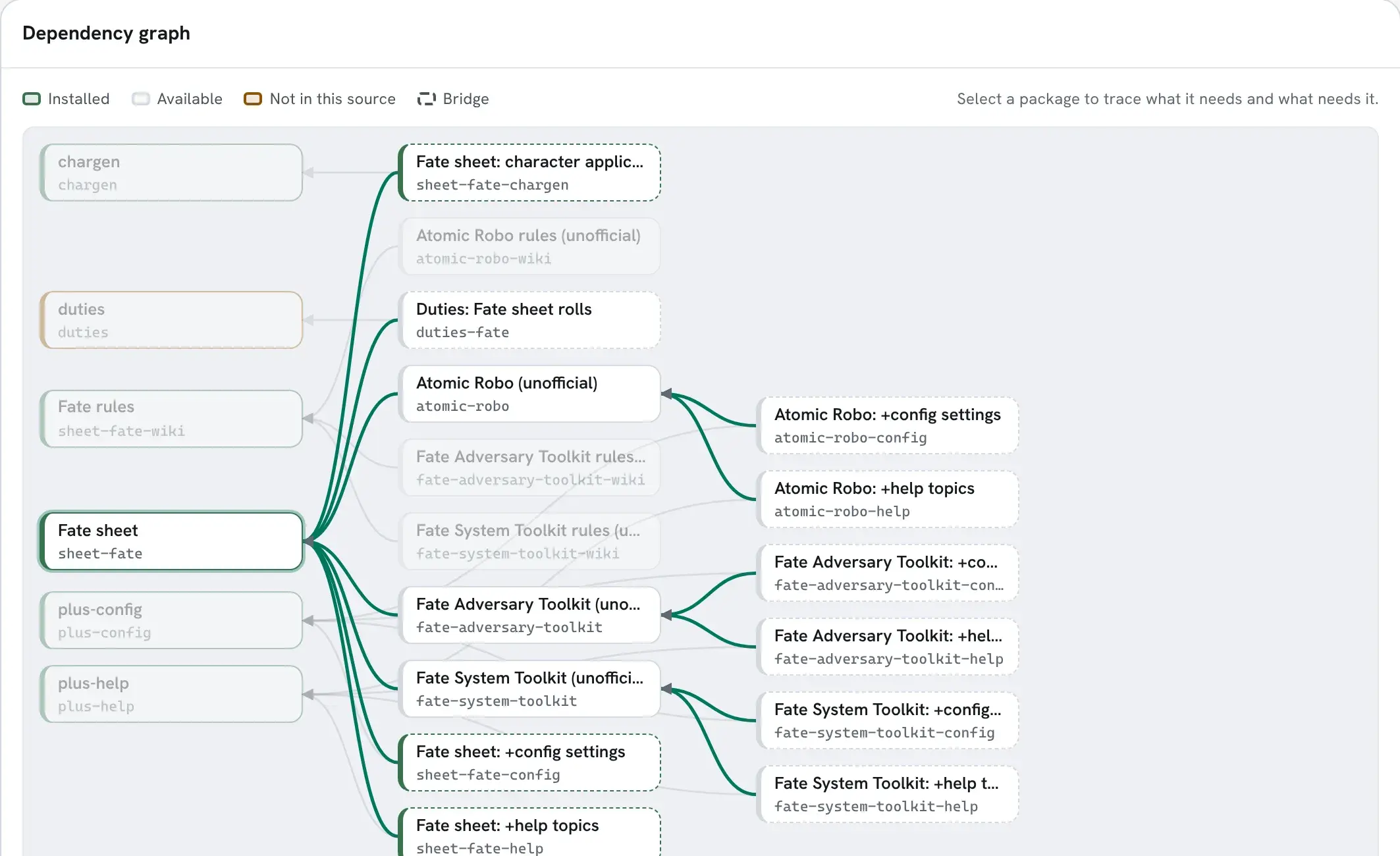
Dependency graph shows the packages the filters leave as a graph, together with every package they need, directly or through others, whether or not this repository lists it. Packages that need nothing are on the left, and each package is one column right of the furthest package it needs, joined by a line to each one. Packages that need nothing and that nothing needs are listed below the graph instead. A bridge has a dashed border, and the border colour says whether a package is installed, queued, available, or needed but not in this repository. Select a package to highlight what it needs and what needs it, through every step; both are listed below the graph. The Dependencies tab under Admin → Packages draws the installed packages the same way.
A git repository holds one or more packages. Its root may have an index.yaml so browsing is fast;
without one, the repository is searched for package.yaml files. An entry is a folder path, or a
mapping with path and optionally name, package, version and description, so the portal can
list packages without reading every manifest (an id may appear only once):
name: SharpMUSH Packagesdescription: Official softcode packages.packages: - path: who-where/ name: Who/Where package: who-where version: 1.2.0 description: +who and +where commands - starter-area/Releases are git tags named <package-folder>/v<version>, for example who-where/v1.2.0. The
version list in the portal is the tag list, installing a version uses its tag, and the latest commit
is the development channel. Never move or delete a release tag; publish a fix as a new version. The
installer records the commit it applied and warns loudly if a tag it installed from later points
somewhere else.
The official repository also carries a curated community directory, so games can discover third-party package repos from the admin panel along with their trust tier.
The bundled catalogue
Section titled “The bundled catalogue”Some packages are built into the server and appear in the portal under the reserved remote name
bundled, with no download and no configured remote. Three separate things can be true of them:
- Shipped: the package is in the server and can be installed from the catalogue at any time.
- Installed on first start: a new game gets it without being asked.
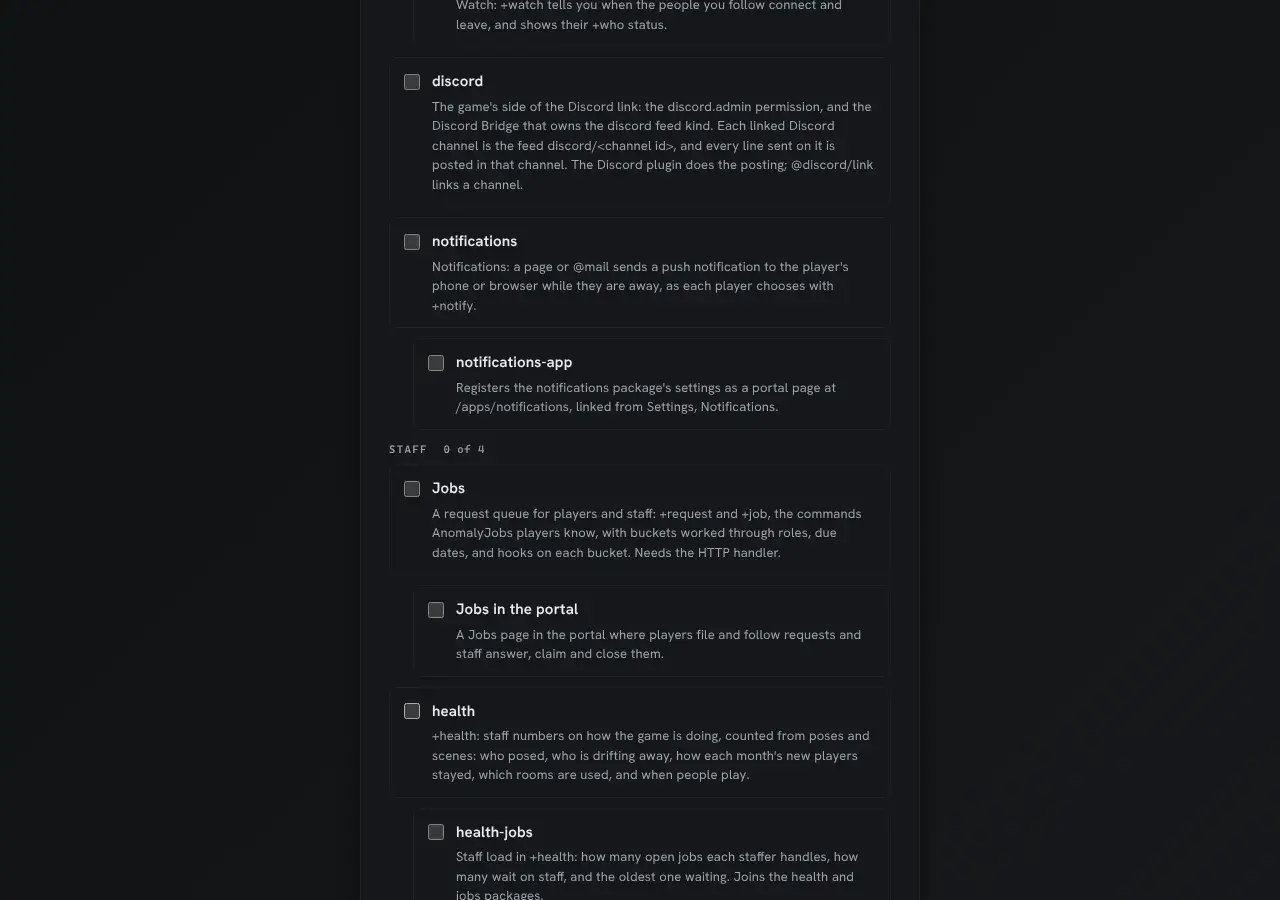
http-handler,profile-handler,room-contents,comm-feed,plus-help,plus-config,scene,scene-help,scene-config,scene-here,onboarding,onboarding-helpandonboarding-configare. They are why a fresh game already has a working HTTP handler,+help,+config, a scene system and a getting-started checklist. A bridge such asscene-helporjobs-helpis installed wherever both of the packages it joins are, as soon as they are (see Bridge Packages). - Ticked at setup: the setup wizard offers it ticked, so a new game gets it unless the administrator unticks it, but a game that is already running does not get it when the server is upgraded. The World map is. Once removed, it is no longer offered ticked.
Every other bundled package is shipped but not installed: the
bulletin boards, +who, +status, the watch list, +finger
and +notify, for example, add commands a game
may not want, a game chooses whether it wants a verse and content warnings
named on its scenes, and a new game reads its connect screen and MOTDs from stored text until
an administrator chooses the Messages object (in the setup wizard or on the package’s page).
A bundled package may only depend on other bundled packages, so installing it never needs the
network. Anything installed from the catalogue records bundled:sharpmush as its source, and is
upgraded in place when a newer server ships a newer version.
The setup wizard offers every bundled package in its last step, grouped by what the packages are for: Essentials, Web portal, Scenes, Community, Staff, Characters and MUD clients, with any package that names no category last, under Uncategorized. Each group says how many of its packages are ticked. A package that builds on another one in its group, such as a portal page for a package’s commands, is listed under that package. What a ticked package needs is ticked with it.
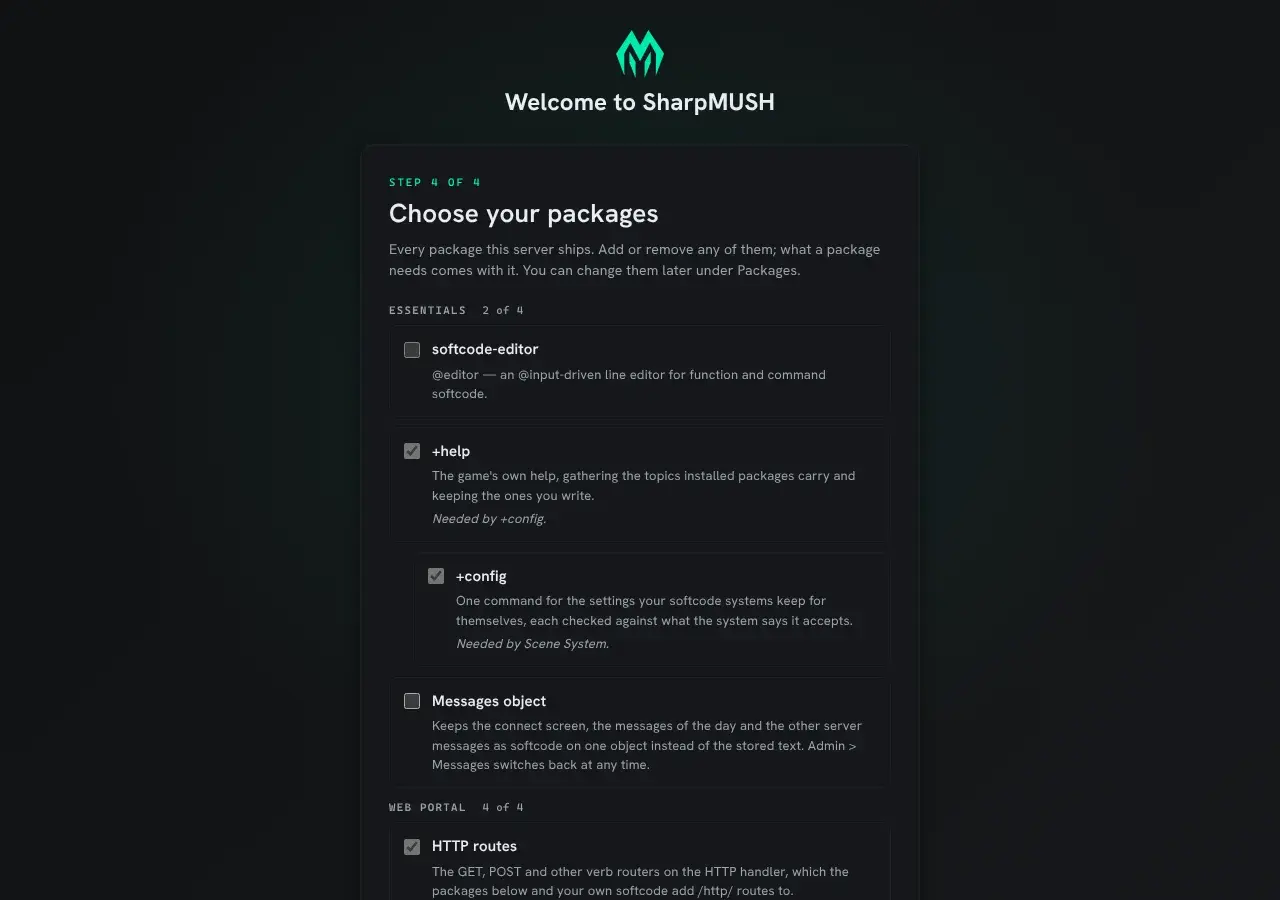
The bundled packages use these categories (a package’s category:, described in
Package Declarations):
| Category | Packages |
|---|---|
| Essentials | softcode-editor, plus-help, plus-config, messages, onboarding, onboarding-help, onboarding-config |
| Web portal | http-handler, profile-handler, room-contents, comm-feed |
| Scenes | scene, scene-help, scene-config, scene-here, radio-scene, scene-verse, scene-safety, highlights, highlights-app, time, timeline, scene-availability, summary |
| Community | wiki-reader, radio, bboards, bboards-app, who-where, status, watch, discord, notifications, notifications-app |
| Staff | jobs, jobs-app, health, health-jobs |
| Characters | chargen, chargen-app, finger, info, roster, roster-jobs, relationships, relationships-scene, relationships-app, relationships-card, alts, onboarding-chargen |
| MUD clients | gmcp, gmcp-mudlet |
| Uncategorized | discord-channels, discord-scenes |
Each package’s -help and -config bridges, such as jobs-help and jobs-config, are in its
category and listed under it. The wizard ticks them with it.
Reading a package’s README
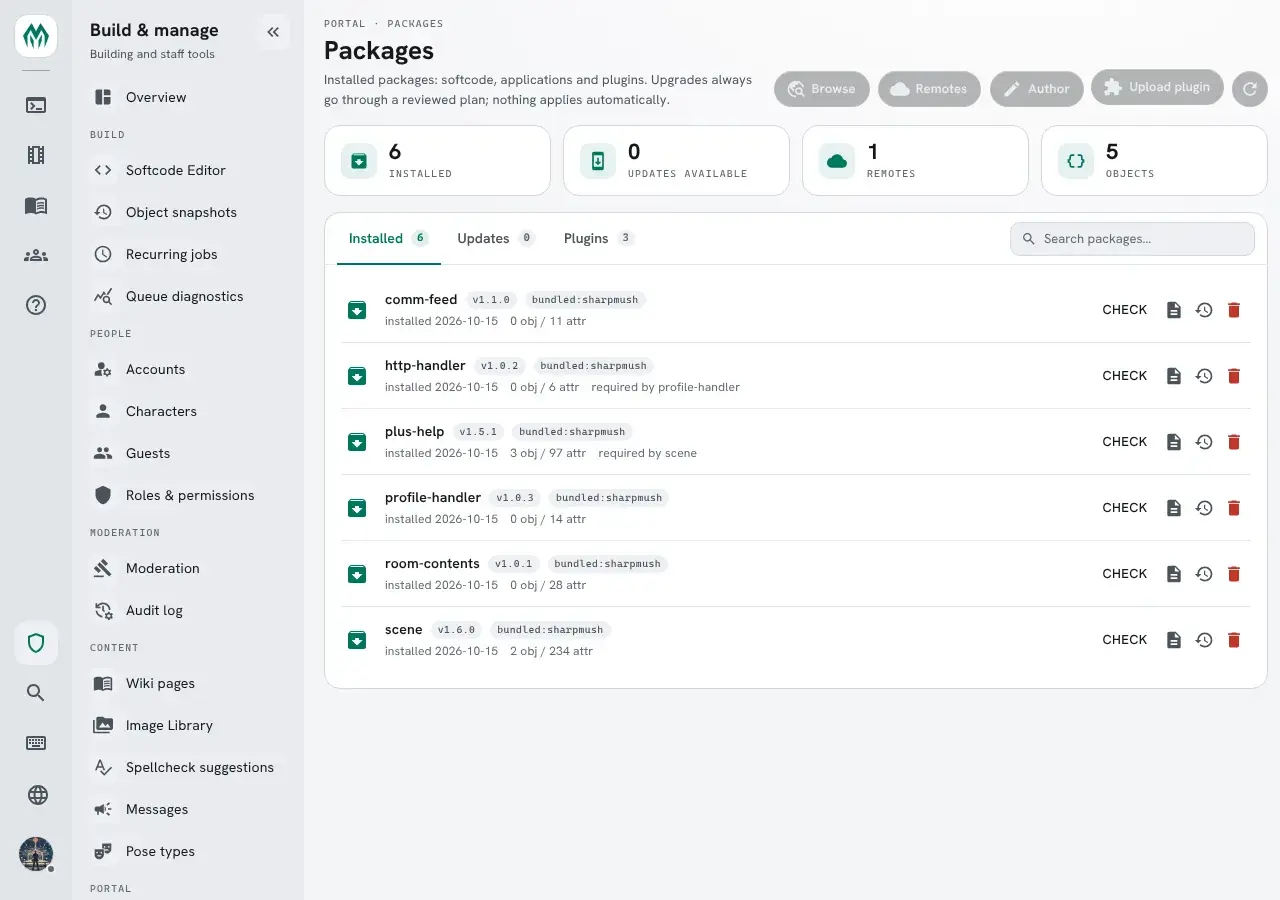
Section titled “Reading a package’s README”A package can carry a README.md beside its package.yaml. The Packages page shows it: each row
under Installed, and each plugin under Plugins that came from a package, has a README button
that opens it in a dialog, rendered from Markdown. Browse shows the same file before you install.
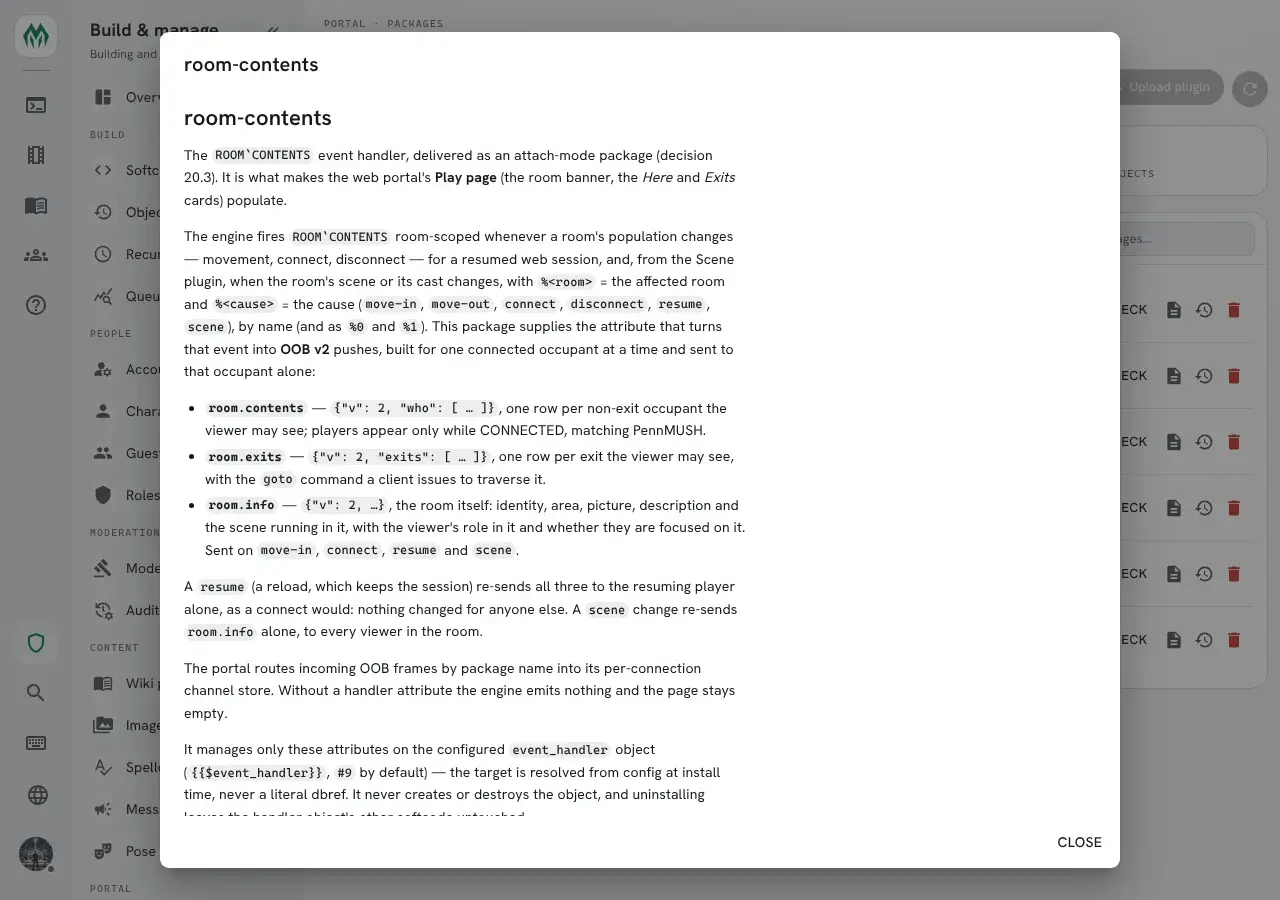
The README you see on the Packages page is the one the installed version came with. It is read from the same commit, upload or bundled copy as the manifest, and kept with the revision the install records, so it needs no network and doesn’t change when the repository does:
- an upgrade replaces it with the new version’s README, or removes it if the new version has none;
- a rollback brings back the README of the revision it restores;
- uninstalling the package removes it.
A bundled package without a README of its own shows one written from its manifest: its description, whether a new game gets it, what it requires and what it creates.
A README is written for the package’s folder, so links and pictures that point into that folder
(../profile-handler/, docs/setup.md, screenshot.png) are not served by the game. The dialog
shows such a link as plain text and such a picture as its description. Web links (https://…),
links to a heading on the same page (#usage) and wiki links ([[Main:home]]) still work. Raw HTML
is removed, as on wiki pages.
For example, this README.md in a package folder:
# coast-guide
Travel notes for the coast road. Install it, then read [[Main:coast-road]].
See [the page format](docs/format.md) and [SharpMUSH](https://sharpmush.com).
shows a heading, a wiki link to the installed page, the words “the page format” without a link, and a working link to sharpmush.com.
A README larger than 256 KB, or one that is not UTF-8 text, is left out; the package still installs.
Authoring a package
Section titled “Authoring a package”From objects you already built
Section titled “From objects you already built”If the code already exists in your game, export it rather than writing YAML by hand:
@package/scan <objects>is a read-only report — it shows the manifest that would be produced, including anything it cannot resolve, without touching the database. When the report looks right:
@package <objects>=<package-id>[,<version>[,<description>]]writes the package out. The /admin/packages/author page covers the same ground in the portal.
The manifest
Section titled “The manifest”A package is a directory containing a package.yaml:
format: 1.2package: myrddins-bbsversion: 2.4.1authors: [Myrddin]description: "Bulletin Board"license: MIT
depends:  - who-where: ">=1.0"
configure:  board_name:    label: "Board display name"    type: string    default: "Community Board"
objects:  - ref: bbs_global    type: thing    name: BBS Global Object    flags: [no_command]    attributes:      CMD_+BBREAD:        value: |-          $+bbread *:@pemit %#=[u({{bbs_parent}}/FN_READ,%0)]        flags: []      DATA_TITLE: |-        {{?board_name}}
  - ref: bbs_parent    type: thing    name: BBS Parent Object
permissions:  - name: bbs.moderate    category: Staff    description: Edit or remove anyone's post.
roles:  - slug: bbs-moderator    name: Board Moderator    category: Staff    permissions:      bbs.moderate: allow
ref names are intra-package identifiers; {{token}} references are resolved to real dbrefs when
the package is applied. configure declares typed parameters the installer is asked for, so a
package can adapt to a game without being forked. permissions and roles bring the custom
permission the board’s softcode checks with permission(), and a role that holds it, so a game
hands out moderation with @role instead of editing code. A package can also bring its own
categories and set configuration options.
Write attribute values as block scalars (|-), as above; Writing softcode in YAML
says why.
The Package Format reference covers every field, the rules for refs
and versions, and a set of example packages, from the bundled systems such as jobs to the
learning examples in the SharpMUSH Guide, a one-object hello-world and a dependency-carrying
bbs-lite.
Package Declarations covers the roles, settings and other blocks a
package can bring.
SharpMUSH.PackageTool validates a manifest locally, before you push.
Beyond softcode
Section titled “Beyond softcode”Packages come in kinds. kind: softcode is the default described above; kind: application
registers a Dynamic Application — a portal page backed by a
softcode schema — kind: plugin distributes a compiled C# plugin, and kind: ui a hosted HTML and
JavaScript page. See Application, Plugin and UI Packages.